
Restaurant POS order management
Restaurant POS ordering system
Enter dine-in, takeaway and delivery orders in the POS. Keep item choices and service details with the order as it moves to the kitchen and on to bill preparation.
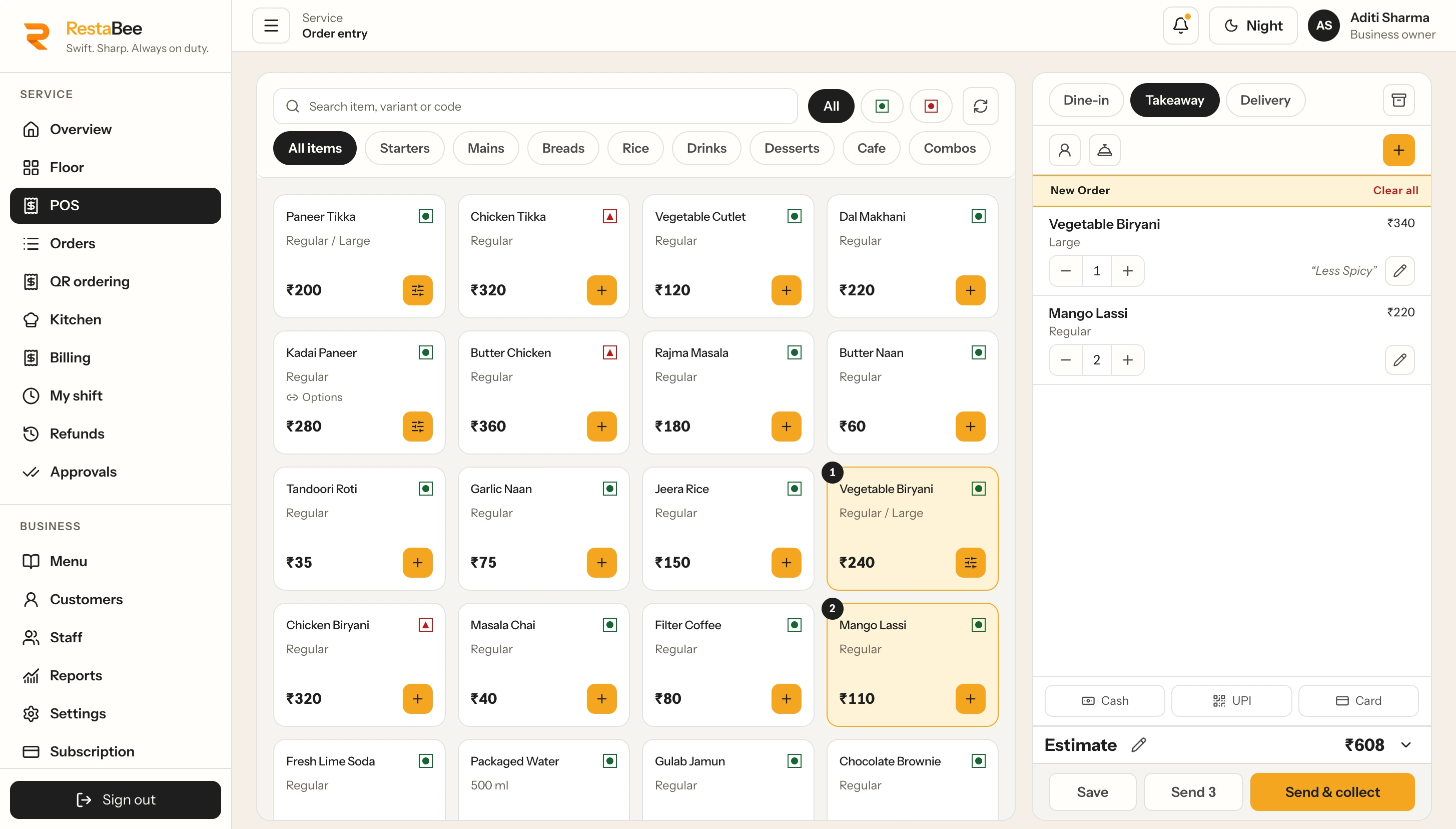
Select menu items, set quantities and review the active order before its next handoff.
Order entry for each service type
One restaurant order management system for dine-in, takeaway and delivery
A restaurant POS ordering system brings order entry into the same workspace staff use to prepare food and bills. Start with the service type, add the guest’s selections, record choices or instructions, then check the order before sending it to preparation. The order keeps its service context through those steps.
For dine-in, staff can connect an order with a table and its party. Takeaway orders are entered by staff for counter collection. Delivery orders are also entered by the restaurant team, with the order details carried into preparation and bill handling. This restaurant ordering and billing system supports these service types in the POS; staff manage any external delivery coordination separately.
The restaurant order management system gives front-of-house and kitchen teams a shared order record. Staff can review the selected items and quantities before sending the order. Once it reaches preparation, the kitchen sees the ticket at the station assigned to those items.
Start with the way the guest is served
Choose the order type before adding items
A restaurant POS ordering system starts by setting the service context. Table details apply to dine-in, while counter and delivery orders follow their staff-entered flow.
- 01
Dine-in
Select or open the table, add the party’s items and keep the table context with the order as service continues.
- 02
Takeaway
Enter a counter order in the POS, review the items and send them to the relevant preparation station.
- 03
Delivery
Restaurant staff record delivery orders in the POS. The order proceeds to kitchen preparation and bill handling from the same record.
Choices stay with the item
Build each order with the right details
The menu presents the items available for order entry. Staff add an item, select a listed variant where one is available, choose its configured add-ons and set the quantity. Combos and their included choices follow the menu setup. The team can also record an instruction such as “less spicy” when it applies to preparation.
A restaurant POS ordering system keeps these selections on the order line so the kitchen receives the relevant preparation detail with the ticket. That gives the team a clear handoff from the menu choice to the assigned preparation station. The menu page explains how categories, variants, modifiers and stations are maintained.
Explore restaurant menu managementReview before the kitchen handoff
Check the order, then send it to preparation
Before sending, staff can review the active order, selected items, quantities and choices. The POS supports a quick two-click send to the kitchen after order entry. Station assignment determines where each item appears for preparation, such as a hot kitchen or beverage counter.
The kitchen team follows new, preparing and ready work in its queue. For a digital workflow, the kitchen display shows ticket progress. A kitchen order ticket carries the preparation details and order reference. These connected views let the restaurant POS ordering system carry the guest’s selection into the kitchen workspace.
- 01
Choose the service type
Start a dine-in, takeaway or staff-entered delivery order. Add a table or other service details where they apply.
- 02
Add items and choices
Select menu items, quantities, variants and configured add-ons. Keep preparation instructions with the relevant item.
- 03
Review and send
Check the active order and send it to the kitchen. Items appear at the preparation station assigned in the menu.
- 04
Prepare and bill
Kitchen staff update preparation progress. The service team continues to bill preparation and records collection through the permitted workflow.
Keep changes visible
Keep order changes visible through preparation
When a sent order needs an amendment or cancellation, the affected kitchen ticket can show the change for staff acknowledgement. The order and its preparation record remain linked, so the team can review what changed in context.
From order to bill
Continue from the order into bill preparation
After service, staff can move from the order record into bill preparation. The bill workflow uses the order’s items and quantities, then applies the configured tax and charge setup. Staff review the bill and record the collection through the permitted workflow.
A restaurant ordering and billing system should make the handoff clear for the people doing each task. RestaBee keeps order entry connected to kitchen preparation and billing, while the billing workflow handles bill issue, eligible draft checks and payment records.
Explore restaurant billingOrder entry questions
Restaurant POS ordering, explained
How staff create orders, capture choices and pass work to the kitchen and billing teams.
What is a restaurant POS ordering system?
It is the POS workflow restaurant staff use to enter an order, select menu items and choices, send preparation details to the kitchen and continue to bill preparation. RestaBee supports dine-in, takeaway and staff-entered delivery orders.
Can staff manage dine-in and takeaway orders in one POS?
Yes. Staff can start dine-in orders with table context or enter takeaway orders for counter service, then send items to their assigned preparation stations.
How are delivery orders entered?
Restaurant staff enter delivery orders in the POS. The order then moves through kitchen preparation and bill handling. External delivery coordination is managed separately.
Can an order include variants and add-ons?
Staff can select the variants and add-ons configured for the menu item. Combos and their available choices follow the restaurant’s menu setup.
How does the POS send kitchen orders?
Staff review the active order and send it to the kitchen. The POS routes items to their assigned preparation stations, where the team tracks ticket and item progress.
Can staff change an order after sending it?
An amendment or cancellation can appear on the affected kitchen ticket for staff acknowledgement. The kitchen display and KOT pages describe those preparation workflows.
Does the restaurant order management system prepare the bill too?
Order entry connects to bill preparation. Staff review the order details, apply the configured tax and charge setup, issue the bill through the permitted workflow and record collection.
See the order workflow
Walk through order entry in RestaBee
Review dine-in, takeaway and delivery order entry, kitchen handoff and bill preparation with the RestaBee team.