
CAFE POS FOR COUNTER AND TABLE SERVICE
A cafe POS built around the way you serve.
Take counter orders, serve tables, set up drink sizes and add-ons, and send preparation details to the right station. RestaBee keeps the cafe POS workflow connected from order entry through billing.
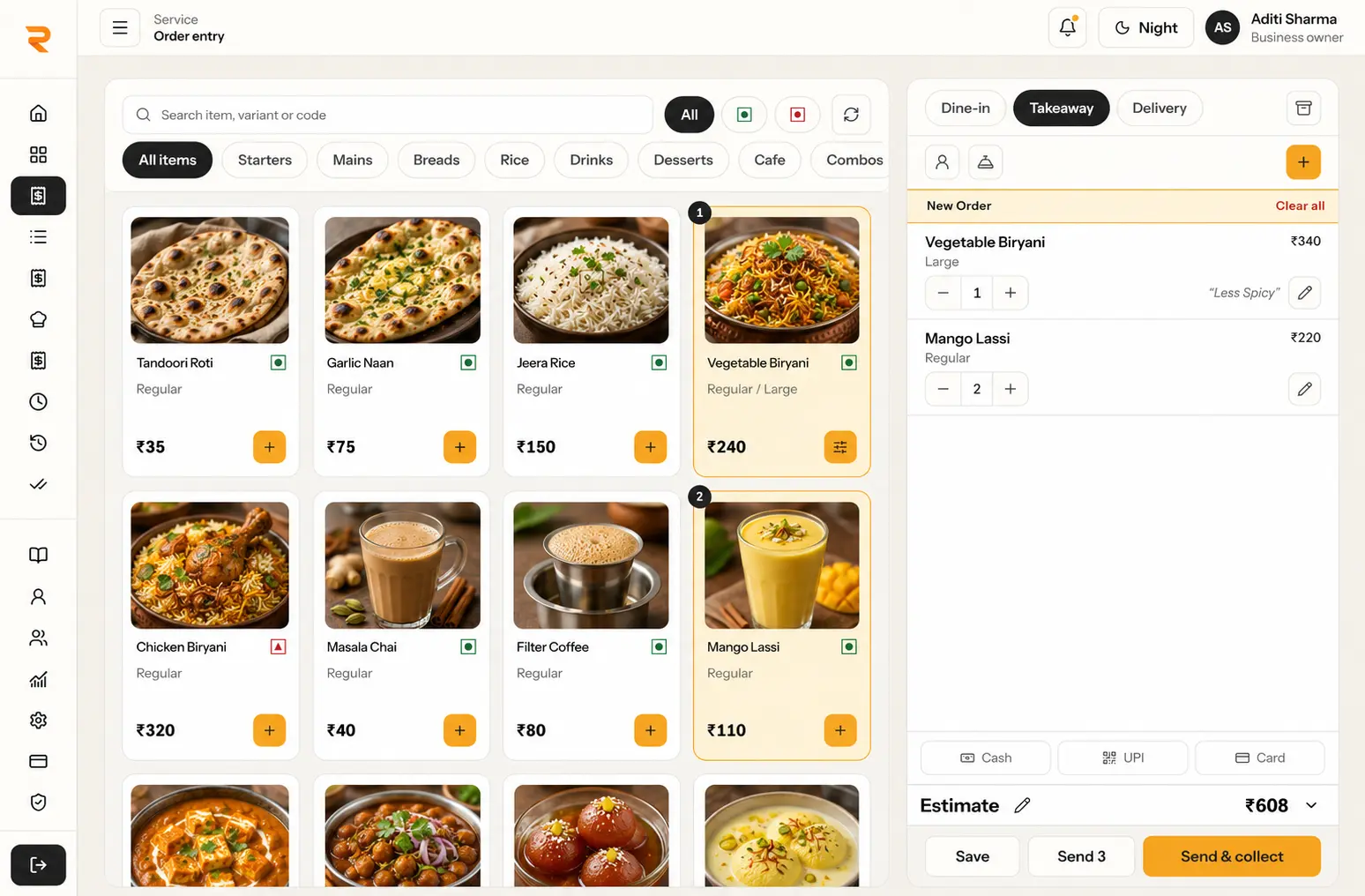
Menu items, choices and an active order on the POS screen. Menu photos are optional.
A SERVICE FLOW FOR CAFES
Keep counter orders moving.
During a morning rush, a cashier needs to find the right drink, capture its size and extras, and send it to the team preparing it. A cafe POS should make those choices clear at order entry and keep the order details together as it moves from the counter to the barista or kitchen station.
RestaBee supports counter and table service in one restaurant POS. Staff can enter takeaway orders, open dine-in tables, record item choices and send preparation details to the configured station. When a cafe serves guests at tables, Table QR ordering adds a guest menu and staff-reviewed order flow alongside the staff POS.
This cafe POS software uses the same order, preparation and billing workflow as the rest of RestaBee. Set up the menu for the service you run, use the device that fits the counter or floor, and keep each order’s next step visible to the team.
ONE CAFE, DIFFERENT ORDER TYPES
Set up service for the way guests order.
Choose the order flow at entry, then carry the selected menu items and notes into preparation and billing.
- 01
Counter takeaway
Enter a walk-in order at the counter, capture the selected items and choices, then send the order into preparation.
- 02
Dine-in tables
Open a table for guests who stay, add items as service continues and carry the party through to billing.
- 03
Table QR orders
Let a guest browse the menu and submit an order for staff review before it moves to preparation.
DRINK SIZES AND ADD-ONS
Give each drink the choices it needs.
A coffee shop POS software setup can include item variants and configurable modifier groups. Staff see the available choices while adding the drink to an order.
A cafe might offer one coffee in Regular and Large sizes, with a milk choice or an extra shot as an add-on. In the POS menu, each defined variant can carry its own price, while modifier groups hold the choices staff need to record for preparation. The guest’s selections travel with the item on the order.
The same structure works for tea, cold drinks, bakery items or a cafe combo. Create categories that match the menu, use variants when the serving size changes, and add modifiers for options that need a separate kitchen or barista instruction. Menu choices remain visible to staff at the point of sale.
This makes the POS system for cafe service easier to use during a queue: the cashier selects the menu item, chooses the requested size or add-on, and sees the configured order details before sending. The setup reflects the cafe’s own menu definitions, so teams can keep the choices relevant to their service.
- 01
Variants for serving size
Define sizes such as Regular or Large, with the price configured for each variant.
- 02
Modifiers for drink options
Add configurable choices such as milk or extra shots where they fit the cafe menu.
- 03
Categories for a quick menu
Group coffees, teas, cold drinks and food so staff can find items during service.
- 04
Station routing for preparation
Associate menu items with the preparation station that should receive them.
FROM ORDER TO PREPARATION
A short handoff from till to station.
Take an order, confirm its options and route each item into the preparation workflow. Staff can follow the same cafe POS order as it moves toward the guest.
- 01
Select the service type
Start counter takeaway or dine-in service and open the relevant order or table.
- 02
Add the drink and choices
Choose the item, select an available variant, and add the requested modifiers or notes.
- 03
Send it to preparation
Send the order to its configured station so the barista or kitchen team can start the items.
- 04
Prepare the bill
Review the order in billing and record the payment using the tender received.
THE ORDER AFTER IT LEAVES THE COUNTER
Send each item where it is prepared.
Assign menu items to the relevant kitchen station during menu setup. When staff send an order, its items and preparation notes appear in the station workflow. The team can start items and mark them ready as preparation progresses, while the cashier can see the order context in the POS.
The cafe billing software workflow follows the order into bill preparation. Review the bill, apply configured tax details and record cash, UPI or card collections. Billing stays connected to the items entered at the counter, so staff can finish the same order record after service.
A POS for cafe teams should make service options easy to tell apart. RestaBee supports counter takeaway and dine-in orders, with table service when the cafe uses tables. Delivery orders can also be entered by staff. The team selects the order type and continues through the relevant order, kitchen and billing steps.
See the kitchen display workflowSee restaurant menu managementExplore restaurant billingA VIEW OF WHAT SOLD
Review item sales by date.
Use reports to review item and category sales for a selected period, alongside other permitted sales and collection reports. Filter by date and order type where available, then use the report scope your role permits.
Explore multi-outlet reports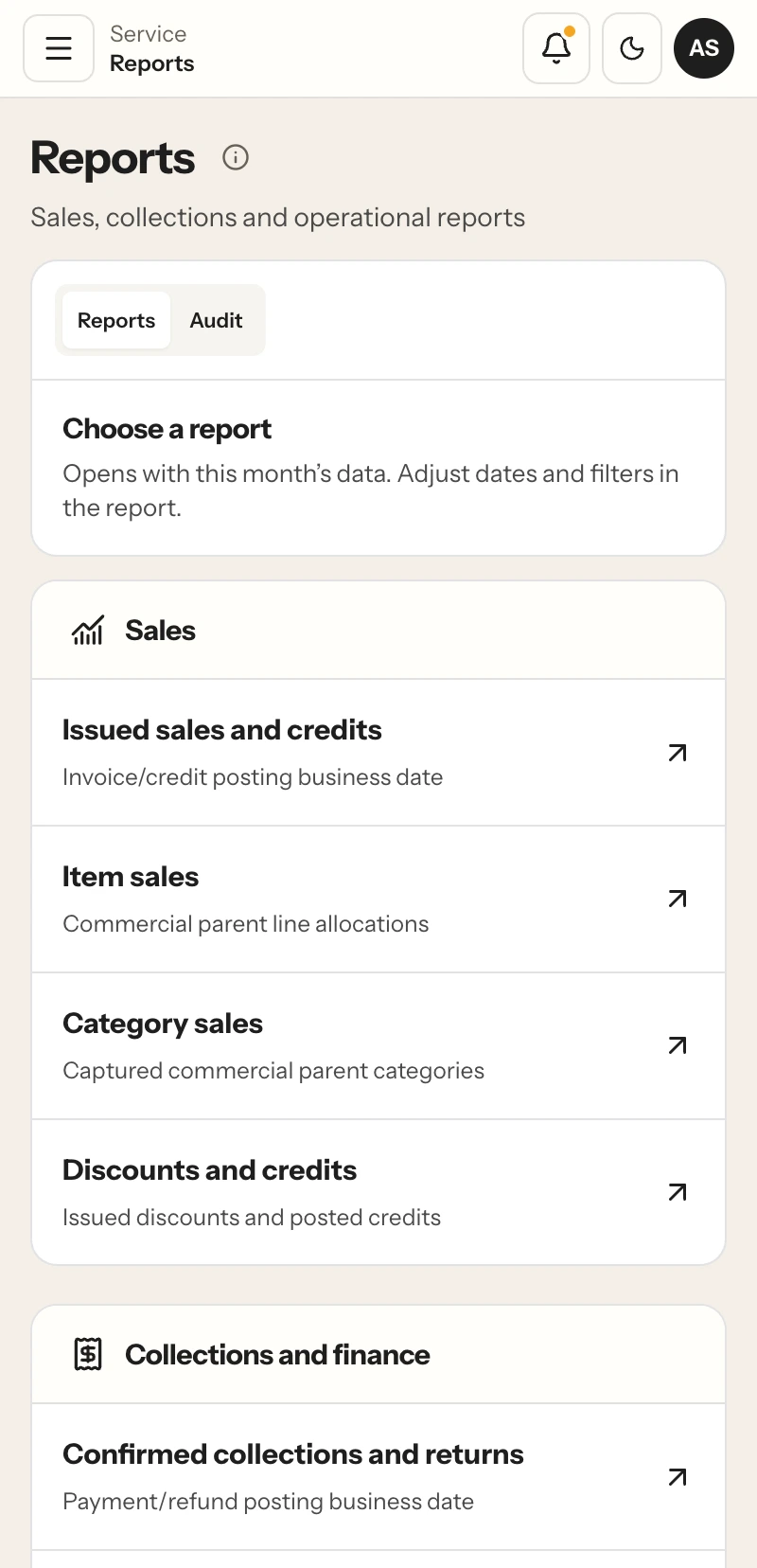
Item and category reporting in the RestaBee app.
FLEXIBLE SCREENS FOR THE SHIFT
Use the screens that suit the shift.
Use a wider screen for order entry at the counter or check service details on a phone. The cafe POS layout adapts to desktop, tablet and phone screens.
CAFE POS QUESTIONS
What cafe teams ask before choosing a POS.
Menu setup, counter orders, preparation and billing in RestaBee.
What does a cafe POS system do?
A cafe POS records counter or dine-in orders, keeps configured item choices with the order, sends preparation details to the assigned station and supports bill preparation and payment recording.
Can I set up different drink sizes?
Yes. Menu items can have named variants with their own configured prices. A cafe can use variants for serving sizes such as Regular or Large when those sizes are part of its menu.
Can a cafe POS record milk choices or extra shots?
Menu items can use configurable modifier groups. The cafe can define choices that fit its menu, and staff select the requested options while adding an item to an order.
Can the same POS handle counter and table service?
Yes. Staff can enter counter takeaway orders and dine-in table orders in RestaBee. Table QR ordering is available for guests to submit orders for staff review.
How do orders reach the barista or kitchen?
Menu items can be associated with configured preparation stations. When staff send the order, the station receives the items and preparation notes for its team to work on.
Which payments can staff record?
RestaBee records cash, UPI and card against the order. Staff can review the collection in the POS billing workflow.
Can I review which items sold during a day?
Reports include item and category sales for a selected date range, with permitted filters such as order type. The exact reports available depend on the user’s role and outlet access.
Is RestaBee coffee shop POS software?
RestaBee supports cafe counter orders, configurable drink variants and modifiers, station preparation, dine-in tables, billing and item or category reports in one POS workspace.
SEE THE CAFE POS WORKFLOW
Walk through a cafe order in RestaBee.
Review drink choices, counter service, kitchen handoff, billing and reports with your cafe menu in view.